
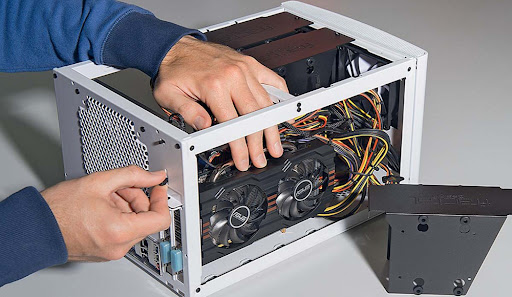
Gamers LOVE assembling their own PCs; it’s definitely something to boast about. But if you’re a first-timer, let’s just say you’re in for some tough times ahead. After all, the job requires a lot of patience and a deep knowledge of computers. So you’ll have to read up and do a lot of research before starting.
Assembling your own PC is both budget-friendly and a fun way to spend your day. Trust us, the satisfaction you get after the deed is well worth the effort. Today, we’ll guide you on how to assemble your first PC from scratch. Grab a notebook, because this is going to be difficult.
Getting Started
To build a PC, you need to collect all the parts and components that are required to run one. You can do it in a specialty shop, or online at Shoppok like I do.To start, you’ll need a computer case, which is the exterior covering of your CPU. You’ll need a processor and a CPU cooler to keep things chilled. And, of course, every computer needs RAM to maintain its day-to-day functions.
But hold up, that’s not enough because every computer needs a Hard Drive or an SSD to store memory. And if you’re a gamer, you’ll also need a powerful graphics card to power your machine. Finally, you will need a solid power supplier to hold everything together.
It can be confusing for first-timers to compile all these parts, as you have to ensure they are all compatible. For example, there might be a Ram stick from a certain company that isn’t compatible with the motherboard of another company. So consult your local computer dealer, or check online to confirm all the components go together.
Once you’ve sorted everything, you’ll want to take the computer case and lay it on a table. Now, simply undo the screws on the left side, and slide the panel out. You will use this opening to add all the parts required later.
Begin With The Power Supply
Since this is your first time, we suggest getting a power supply that is not modular, as it comes with all the plugs preattached. Otherwise, you’ll have to attach all the plugs yourself, which can be challenging for a beginner.
The first step is observing your computer case and locating the mounting position for the power supply. Power supplies usually go at the top portion, but some computer cases will have a space for them around the bottom. Your case will have a small opening at the back; that’s how you’ll know the power supply is supposed to go there.
Simply place the power supply in the accurate spot, with its backside exposed on the small opening. Then use a screwdriver to seal it permanently to the case.
Inaugurate The Processor
The motherboard is the most sensitive component, so you should always handle it carefully. You’ll notice several pins on it, do NOT touch them, or bend them in any way. Find the load plate, a square metal bracket that can be raised or lowered by the lever. The motherboard will contain a section covered in plastic; this is the correct array, so don’t mess around with it. Also, do NOT open the plastic until you are ready to install the processor.
The first step is to open the load by gently pushing the load arm down. Then, shift it sideways from underneath the hook, and raise it up. The plastic piece should pop out by this point; if not, carefully remove it with your hands. Now, all you have to do is align the processor to the socket. Then, seal the processor by gently pressing down the retaining arm.
Stick The RAM In
Look inside your CPU, and you’ll find several slots next to each other. This is where you will place your RAM. If you have only one stick, place it in the A1 slot; if you have two sticks, use the A2 and B2 slots. The slots will have plastic wings on opposite ends; push them down and then pull them outwards to open them. But before you do anything, hold the RAM stick over the slots to figure out the alignment.
Placing the RAM sticks on the slots is easy; just spread the plastic wings outwards, and insert the RAM. Don’t apply too much pressure; otherwise, you’ll ‘ram’ the sticks right in. Be gentle with your movements and place the sticks smoothly into the slot.
Lodge In That Motherboard
This is arguably the most challenging part when building your PC. It’s not just about finding the right slot to stick the component in but also attaching the right wires in the right place. So you’ll have to be very careful with whatever you do.
You’ll first want to install the rear I/O panel of the motherboard onto the CPU case. Getting the right alignment can be extremely tricky, so we suggest going slowly. Gently arrange the motherboard inside the case and ensure it fits into your I/O panel. Then, seal it permanently by screwing it in. Make sure you don’t use too much force while doing this; otherwise, you’ll damage the board.
Now, you’ll have to plug in the necessary wires in the right place. We recommend referring to your manual to get a better understanding of this. The main power connection will be wider, with around 20 to 28 pins and a two-row cable. But it’s not uncommon for some motherboards to have secondary four-pin connectors.
Cool Down With The CPU Cooler
Since you’re a beginner, buying a cooler that already comes with thermal paste attached is better. Otherwise, you’ll have to inject it manually using the syringe tube; just a small dose will do. Some coolers need a custom backplate; if that’s the case for you, remove the motherboard’s backplate and attach this one.
Start by fitting the cooler above the processor, and push it down gently until it is properly aligned. Fit the cooler permanently by screwing in the various bolts and screws. Don’t apply too much pressure while tightening the screws; you only need enough so the cooler doesn’t come loose. Now, plug the cooler fan’s connector into the motherboard’s cooler port.
Blast In That Graphics Card
First, locate the extended connector on the motherboard’s rear and hold your graphics card against it to check. This will help you figure out how many backplates you’ll need to remove for the card to fit through.
Before attaching the graphics card, ensure the PCI-Express connector is faced downwards, and the ports are aligned to the case’s rear. Now attach the graphics to the motherboard; you might even hear a clicking sound.
Some graphic cards need additional power; that’s what the extra PCIe power connectors are for. You might find them on the card’s top layer or on the sides. Locate the VGA slot on your power supply and plug them in.
Seal The Deal With Hard Disks And SSDs
Computers typically store information in a 3.5-inch HDD or a 2.5-inch SSD, with a few exceptions using M.2 slots or PCI-Express sticks. Don’t worry; we’ll cover how to deal with each of these.
There will be a 3.5-inch mounting point on your computer case for an HDD or hard drive. Locate it and attach your HDD either by screwing it in or using the case’s mount to lock it. After that, it’s just a matter of plugging in the data cable onto the motherboard and hard drive, then plugging in the power connector. You can install an SSD card the same way, just that it will go in a 2.5-inch slot.
If you’re using an M.2 card, you’ll have to find the slot for it on the motherboard. It will be labeled in tiny letters, so you might want to get a magnifying glass if you have weak eyes. Undo the screw and slide in the M.2 card at a 45-degree angle, then press down until you hear a clicking sound.
Similarly, the motherboard will also have a slot for a PCIe card. You just need to locate it and attach the card appropriately in the slot. Make sure the gold contacts in your drive face down when you attach the card to the motherboard. You’ll know the card is locked in place when you hear the click.
Conclusion
Once you’re done with the CPU, it’s now time to connect all the other components like the monitor, keyboard, mouse, and speakers. Turn on the main power once everything is attached and see if your computer boots up. If you did everything correctly, you should be looking at the windows logo on your monitor screen right about now. Enjoy!
