
You can use FaceTime to share your screen and make video calls even more productive by sharing your screen.
Here are the steps to follow for both Mac and iOS devices when sharing your screen using FaceTime.
What is Facetime?
Apple’s Facetime video-calling solution is one of the most popular video-calling platforms available. Users will be able to make video calls, and voice calls, and share screens with their contacts through this application.
Shared screens are an excellent method for sharing important documents, presentations, or demonstrating something on your device to others.
Benefits of Screen Sharing on FaceTime:
When FaceTime is used with a screen, the following benefits are available:
- Convenient: The FaceTime screen-sharing feature allows you to share information with other users in real time without having to send files back and forth.
- Productive: With screen sharing, it is easier to collaborate on projects and presentations with others, which leads to time savings and an increase in efficiency.
- Engaging: Both parties can participate in a video call more interactively and engagingly by sharing their screen on FaceTime.
How to Share Screen on FaceTime Mac?
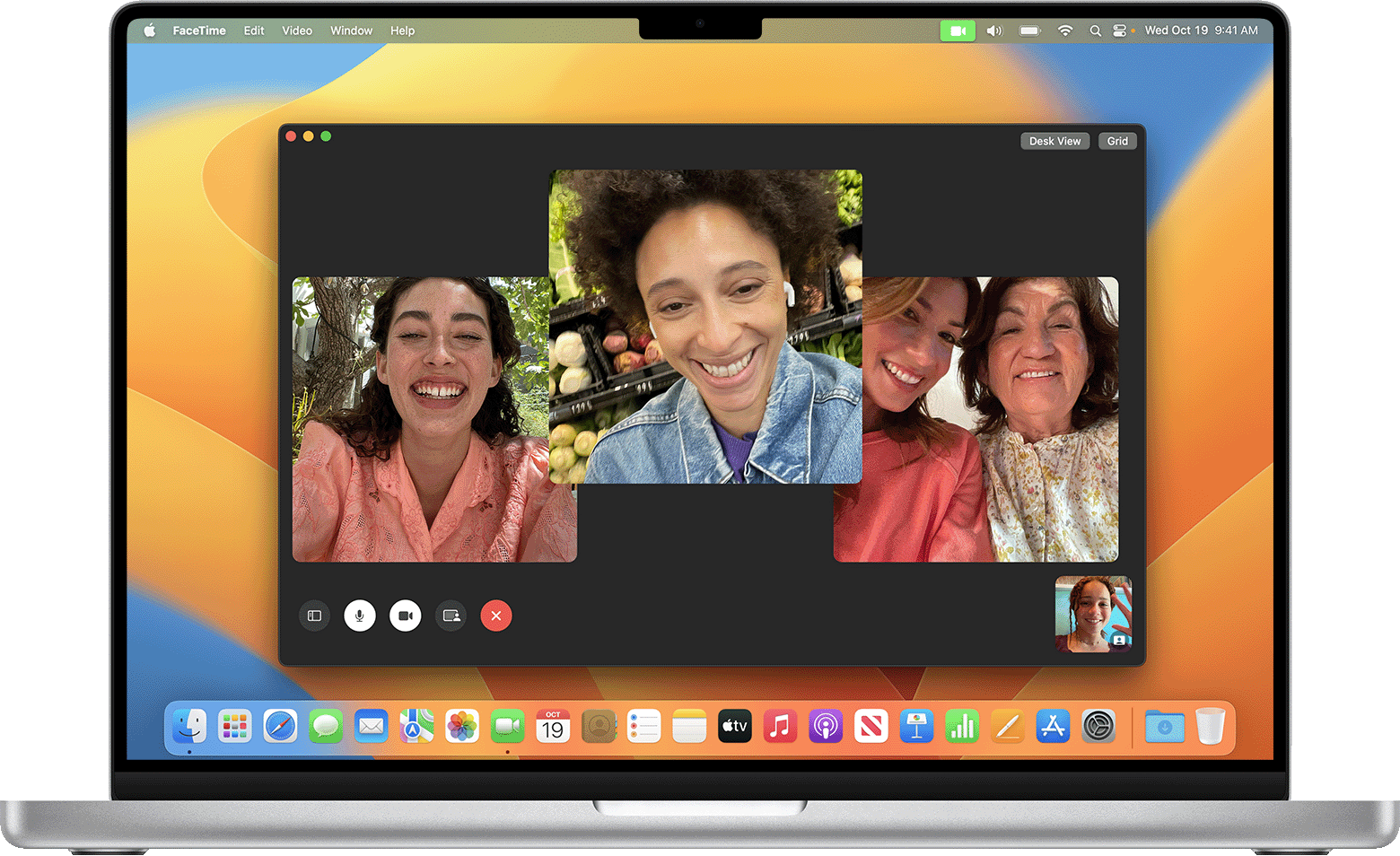
A Mac user can share their screen via FaceTime by following these steps:
- Share your screen with the person you wish to share it with by starting a FaceTime call.
- To share your screen during a FaceTime call, click the “Screen Share” button.
- You will need to select the screen or window you wish to share.
- The “Screen Share” button should be clicked again to stop sharing your screen.
When you choose an option, you will have the option of sharing a screen or a window. Please move your pointer to the content you wish to share before selecting an option.
It is best to move the pointer to the app’s window if you are only interested in sharing one app. It is also possible to share the entire screen by moving the pointer anywhere on the screen.
The “FaceTime” icon in the menu bar will appear when you have decided to end screen sharing. The next time you wish to stop sharing, press the “Stop Sharing” button.
Tips for Successful Screen Sharing on FaceTime:
- You must maintain a stable internet connection to share your screen smoothly.
- To maximize the performance of your device, you should close all unnecessary apps and tabs.
- It is important to ensure that the person with whom you are sharing your screen is using the latest version of FaceTime.
FAQS:
1. What is Facetime?
Video calling is made possible by Facetime, a popular video-calling platform developed by Apple. This application allows users to make video calls, and voice calls, and share their screens with other users.
2. What are the benefits of screen sharing on FaceTime?
An excellent combination of convenience, productivity, and engagement. The use of screen sharing facilitates real-time sharing of information without having to send files, facilitates collaboration, and enhances the interactivity of video calls.
3. How to share screen on FaceTime on a Mac?
You can share a screen by starting a FaceTime call, clicking the “Screen Share” button, selecting the screen or window, and clicking the Share button again to stop the sharing process.
4. How to Share Screen on Facetime?
In general, sharing a screen on Facetime should be as simple as possible depending on which Apple device you are using. It is recommended that you are running iOS 15 or iPadOS 15 on your iPhone or iPad. Following the start of the meeting, look for the screen-sharing option in the top right corner of the screen. The screen-sharing process will begin once you tap on it. There is even an easier way to do it on a Mac. Nevertheless, the option to share your screen will be located at the bottom left corner of the screen.
5. Does the person I want to share my screen with the need to have the latest version of FaceTime?
During a screen-sharing session, you should ensure that the person you are sharing your screen with has the latest version of FaceTime.
6. On Mac, why can’t I share my screen with FaceTime?
Several things should be checked if you are experiencing problems sharing your screen with another Mac or viewing a shared screen on your Mac. On the Mac whose screen you wish to share, ensure that screen sharing or remote management is enabled and that sharing permissions have been set up. Turn Mac screen sharing on or off by following the instructions.
Conclusion:
A useful feature of FaceTime is the screen-sharing feature that enables you to share information with others during a video call. Sharing your screen is easy regardless of whether you are using an iOS device or a Mac computer.
As outlined in this article, you will be able to make the most of FaceTime’s screen-sharing capabilities by following the steps outlined in this article.
For those who wish to make the most of their video calls, screen sharing on FaceTime is a must-have tool, due to its numerous benefits, including increased productivity and engagement.
